
A key tool for financial management is the creation of a budget before the start of a financial year and then monitoring revenue and expenditure against this.
As the year progresses, there will arise a need to update a forecast of revenue and expenditure for the financial year without losing sight of the original budget. So while the initial forecast equals the budget, the forecast needs to be revised over time and hence kept separate from the budget.
Budget
See Xero help: https://central.xero.com/s/article/Create-a-budget
Video: https://tv.xero.com/detail/video/5131036429001/using-the-budget-manager-in-xero
Note that the “Period” is the period subsequent to the start date from which the budget is to run, while “Actuals” is the period prior to the start date for which you want to see actual expenditure. The Totals column totals both “Period” and “Actuals” figures. So if you want only the total for the budgeted period, then set the “Actuals” period to “None”.
If you have 12 months of actuals before the budget period, then you may want to base the budget on those previous 12 months. To do so, select an “Actuals” period of 12 months, export as an Excel file, change the dates in the “Account” row to be one year later (see below), and then import back into the Budget Manager. As a precaution, delete un-needed columns (months) before importing.

In practice you are unlikely to want the budget to be exactly the same as the last year. So make the changes you want in the spreadsheet and then import the edited data into Budget Manager.
Forecast
Xero does not really do forecasts. You will probably be best downloading data from Xero and manipulating it in a spreadsheet for a decent presentation of forecasts during the year. That said, you can get what I call a naïve year end forecast by addling a column to an Actual vs Budget report where the variance to date is added to the full year budget figure. See Actual vs Budget report.
The naïve forecast is naïve because it assumes that any variance will persist (for example it is not just a timing issue) and at the same time that the cause behind the variance will not affect future months.
In practice, what I do is to try to understand what lies behind each significant variance and then take a view of what that implies for that line item over the full year. Then, with a copy of the original full year budget, change affected line items appropriately to get a current forecast of the year end.
Below I describe what you can do if you need a detailed month by month forecast, should you need one (which has not been my experience).
Detailed Month by Month Forecast:
Start by creating a new budget called Forecast. Populate the forecast budget with the values of the main budget by exporting the main budget to a spreadsheet and importing the spreadsheet into the Forecast budget.
See: https://central.xero.com/s/article/Import-a-budget
Always check the dates affected by an import before importing in order to avoid overwriting values that should be retained. Do this by clicking the “View dates affected” link presented as below.
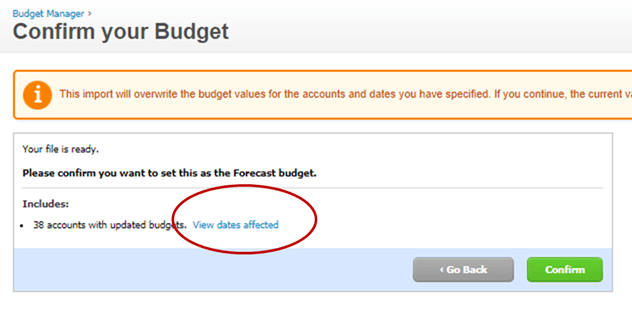
To adjust the forecast for any future month as the year progresses do one of the following.
Access the Forecast budget in Budget Manager and change the values that need change there. Otherwise, make the changes in the original spreadsheet (or download another copy from Xero) and import back into Xero as described above.
You can get a year-end forecast from the new forecast by creating an Actual vs Budget report with the Forecast budget as the budget and then creating the “naïve” year-end forecast – as described above- with that report instead of the main or original budget. Since this uses actuals for all past months and ignores the Forecast budget value for those months, there is no point in updating values for past months.
 Xero for Small Charities