
Donor and/or project tracking
This applies where a donor requires a report and there are some restrictions on what the funds can be spent on.
A donor may require separate reporting on separate tranches of funding. This will require identifying those tranches as separate “projects” associated with the donor.
Setting up for donor/project tracking
To track grants (revenue), expenditure, and cash movements by donor or project, one can use Xero’s Tracking features. This can be done without buying the add-on Projects module that costs extra and is primarily intended for detailed time and cost tracking against customer projects. Hence what is described assumes no use of the Projects module.
Xero supports 2 tracking categories with no more than 100 tracking options recommended for each tracking category to ensure reports load quickly (potentially limiting the tracking possibilities).
It may be possible to use only one category for tracking projects; but if there are separate categories that need tracking within projects, or across the organisation you will need both categories.
If the only tracking you need is for restricted funds, then use one of the Xero categories to allocate to each fund for this. You can report on Restricted vs Unrestricted fund flows via a report in which you select all the active projects to get your total Restricted funds.
Other tracking that would suggest use of the second Xero tracking category might be for:
- Capturing different aspects of the charity which you want to report on separately, at least for the Trustees, in particular if a single funding might cut across both activities.
- Distinguishing overhead costs from direct costs when, for example, you have staff costs in both categories (i.e. where grouping by account code won’t work)
- Wanting to filter out from your accounts monies handled on behalf of others and not regarded as part of the charity’s own activities.
In what follows, I will explain how to use one tracking code for projects (restricted funds) and the other for distinguishing types of activity/classes of transactions (or simply to separate Restricted, Endowment, and Unrestricted). If you don’t need any secondary category, ignore the advice relating to any second tracking category. In fact, if you do not set up a second category, you will not see the option to enter values for a second category.
So we will have one tracking category named “Donor/project” and a second category called “Activity/Class”; many of the illustrations of “Activity/Class” relate to distinguishing Restricted funding, Client monies handling , and Unrestricted funds .
Setting up donor/project tracking code
This is done by adding the new donor/project name as Donor/Project value. If the donor has no requirement to track different projects or different grant tranches separately, then just use the donor name and do not create new projects unnecessarily.
If the donor does need separate reporting by project or tranche, then we suggest using a combination of the donor name and tranche as the project name, as in “Lottery #2”.
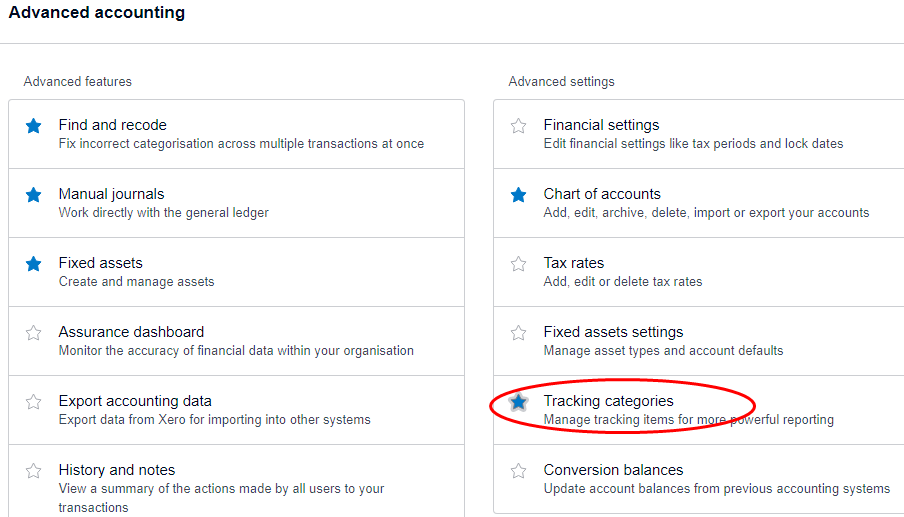
The name is added as follows:

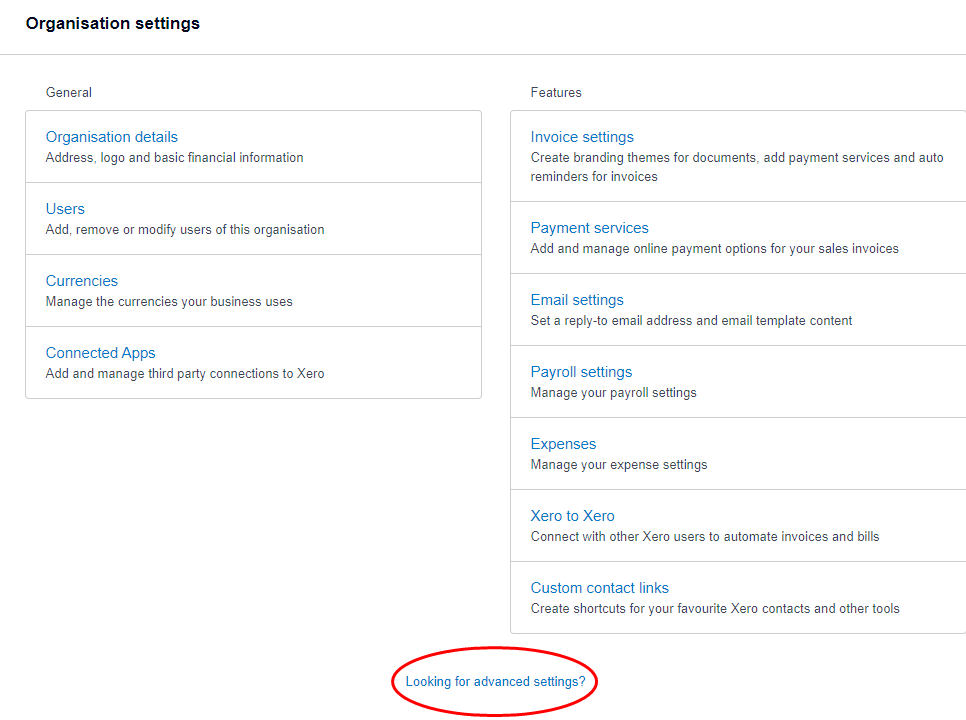
Otherwise using https://go.xero.com/Settings/AdvancedAccounting.
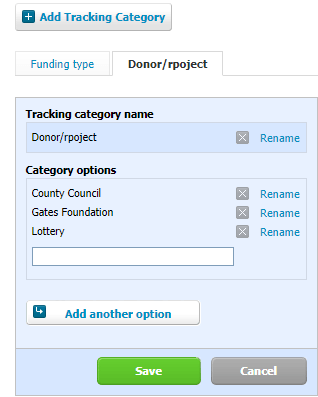
On the next page, select the Donor/Project tab, then “Add another option”, enter the new name and then press “Save”.
Recording income to a project
See the sections on “Invoicing” and “Restricted purpose grant” in the section: “Accounting for donor grants”.
Then see the “Donor grants” section in the section: “Reconciling money coming in”.
Allocating external costs to projects
See the “Costs attributable to a project” sections in the “Money out” section.
Attributing salary costs to a project
Background (you can skip if only interested in the recommended procedure)
This is not as straight forward as allocating external costs to a project. The reason is a weakness in Xero at the time of writing (and hence possibly to be rectified in the future).
You cannot currently set tracking codes for wage -related costs when doing the pay run.
You can set repeat journal entries to add tracking codes to part of the salary bill; likewise NI and pension. That works for P&L reports but the Tracking Transfers entry on cash flow reports prevents the allocation showing on fund flows.
If instead one adds tracking codes to Wages Payable payments as part of bank reconciliation, then the entries do not appear on P&L reports. This is unlike Bill payments. If tracking codes are added to bills, then you get the appropriate entries on both P&L and cash flow reports.
What is needed is a procedure that produces the right results for both accrual-based and cash flow based reports.
Xero support advice on this is as follows:
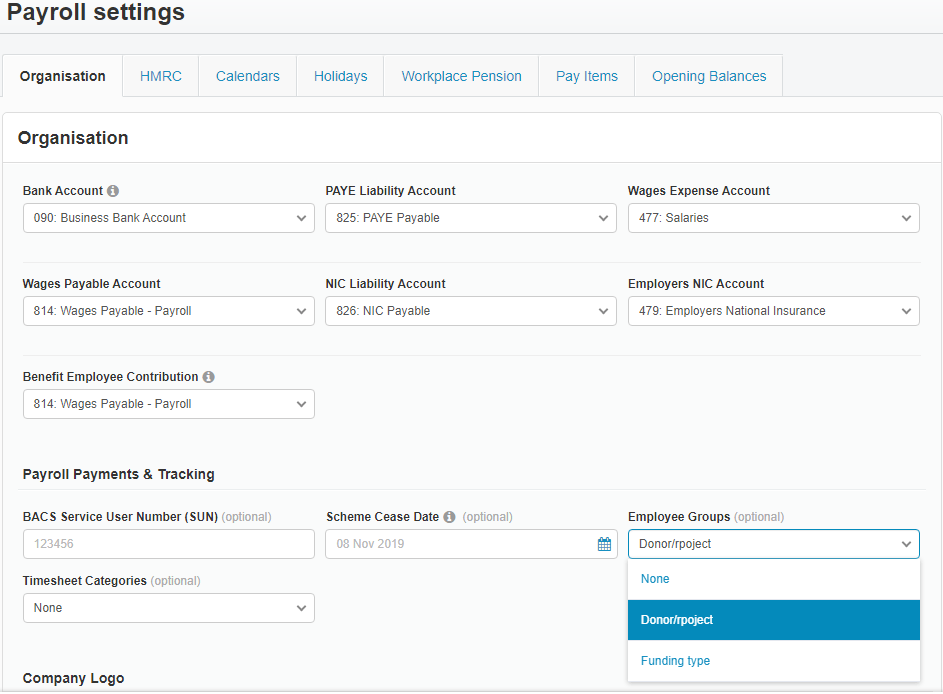
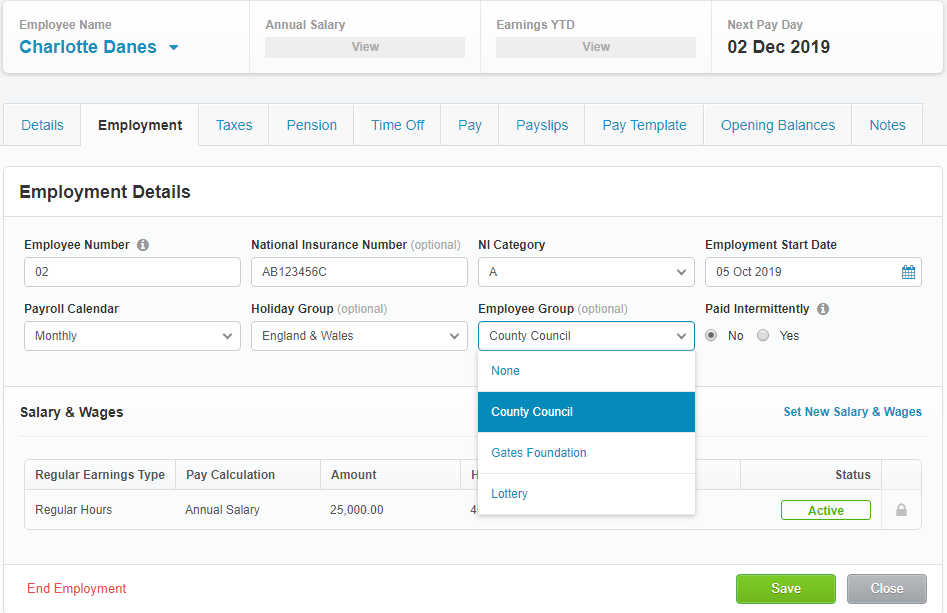
“If your business only requires the use of one tracking category and a single category per employee, we recommend you use the Employee Groups field in the Payroll Settings menu. Go to Settings > Payroll Settings and update the Employee Group field with the required tracking category. Then go to Payroll > Employees > select employee > Employment tab and update the Employee Group field for each employee.
If you need to allocate a second layer of tracking to your employees, you need to set up timesheet categories. Go to Settings > Payroll Settings and update the Timesheet Categories field.
Please note you can only link one tracking category to employee groups and one to timesheets, and these cannot be the same for both.”
It is possible that this could be addressed by the Xero add-on module for Projects. However that is a significant extra cost and the ongoing recording of time and cost against each project is most likely unwarranted effort. Likewise for use of timesheets, even without the Projects module.
Without the Projects module, though, the Xero recommended method using Employee Groups only works if the entire time of an employee is dedicated to one and only one project per pay period. This is too restrictive to be a general solution to the issue but it is recommended in the case that an employee’s full costs are allocated to a project.
Note, though, that allocations made through the payroll cannot be changed afterwards, e.g. by “Find and Recode”. You would have to make reversing manual journal entries to do this.
Timesheets could be used but are a considerable burden on all involved if all hours have to be entered each month by someone. In the AU and NZ versions of Xero, one can save timesheet templates, which make it relatively easy to load template data into each month’s timesheet and approve it. This is not available in the UK version. Hence, unless you really do have materially variable time use which needs to be tracked, timesheets are not recommended for this purpose.
Because of these limitations in Xero and the resulting complications in accommodating both accrual and cash-based costs, the procedure recommended assumes that we do not need to supply cash flow based reports and are concerned only with accrual-based reporting as would be required for annual accounts.
General rules
Where the full cost of an employee is covered by funding, use “Full employee cost allocation” below.
Where a partial but relatively high percent of an employee is funded (70% or more), then use “Full employee cost allocation” until the funding is used up or will not fund another full month, then – if necessary – switch to the partial but low percent allocation process: “Partial cost allocation”. (This would not be appropriate if needing to provide quarterly reports to the donor as the reporting would be inaccurate at over those time windows.)
If partial but relatively low percent of an employee is funded (less than 70%), then use “Partial cost allocation”. (Again, also use this if frequent reporting to the donor is required and the employee is only partially funded.)
NOTE: With the “Full employee cost allocation” method it is not possible, as mentioned earlier, to track the expenditure for both tracking categories (e.g. add Activity/Class = “Advice Services” as well as a project code). Hence some project funding that should be tracked as “Advice Services” will be missed by the “Advice Services” filter. The method, though, has the advantage of simplicity and not requiring manual journal entries. If the inability to track for both categories at once is a show stopper, then use the “Partial cost allocation” for all employee costs.
Full employee cost allocation
For this case:
- Have Employee Groups set to Donor/Project
- Set the relevant Employee’s Employee Group (on the Employment tab) to the relevant project
Partial cost allocation
In the case of partial cost allocation
noted earlier, where a partial but relatively high percent of an employee is funded (70% or more), then use “Full employee cost allocation” above until the funding is used up or will not fund another full month, then – if necessary – switch to the process described here.
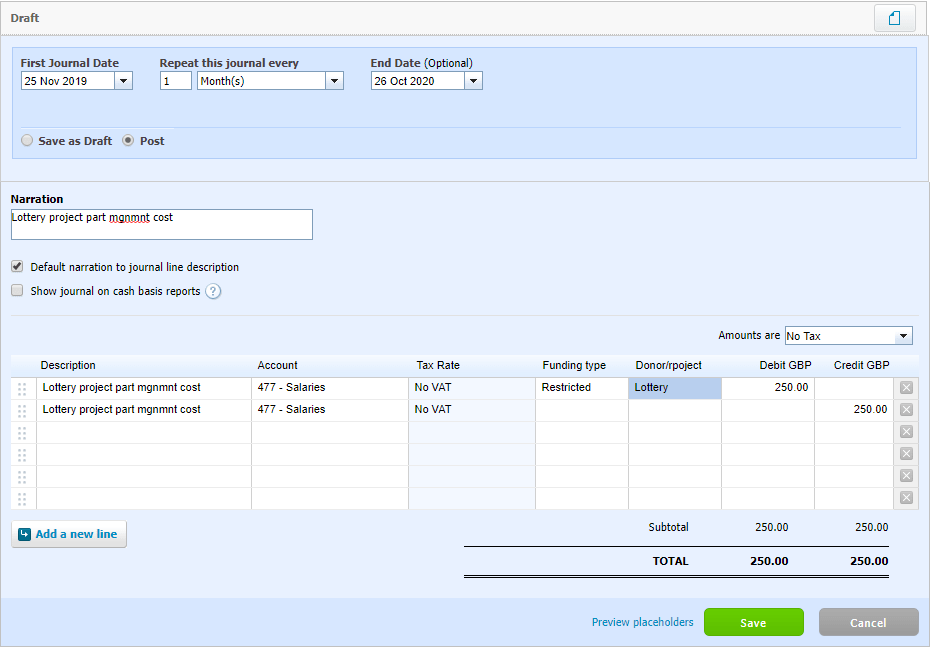
In this case, we will not attempt to capture pro rata pension and NICs accurately. If you like, the share of wage cost could be upped a bit as a proxy for covering these elements. At any rate, decide the monthly salary amount to be attributed. Then someone with Advisor rights and familiar with manual journals should set up either an ad hoc single journal entry or monthly repeating entries (with appropriate end date) to allocate that amount to the project. The screenshot below shows creating a repeating journal entry to allocate wage costs.
Note:
- Cost allocation to the project is entered as a Debit, with a matching Credit towards the original (non-allocated) total
- DO NOT CHECK “Show journal on cash basis reports”. It is checked by default for a new journal.
To allocate more general overheads or as an alternative way of allocating pension and NIC cost, use “Allocating staff related overheads to projects”, which follows.
Allocating staff overheads to projects
For the Pension and NIC costs associated with staff, see the section on allocating staff costs to projects.
Some funders also offer to cover general office overheads associated with staff or a portion of management time.
If the agreement is specifically to cover a portion of management time, then, having agreed the monthly cost that implies, have someone with Xero Advisor permissions set up a repeating manual journal to allocate that cost to the project each month.
If general overheads are covered, then it is expected that an agreed percentage of salary is presented for covering such costs and there is no obligation to show an allocation of funds across all elements of overheads pro rata to the employee’s “share” of the total.
It is up to the manager to decide what that percentage is and agree it with the funder. (Consideration should be given to not funding items which are already specifically covered by other funding, though.)
There is of course no accounting code for general overheads. It comprises a quite large group of accounting codes. To keep administration simple, the overhead element of a project should be allocated first to the most costly overhead element (e.g. Rent). If and when all that overhead cost has been fully funded by projects, additional general overhead funding should then be allocated to the next most costly overhead (e.g. Information Resources & subscriptions).
To be sure of being up to date with project cost allocation, set these allocations up with repeating manual journals. Otherwise make the allocations with ad hoc journals whenever reports are needed or at the financial year end.
In particular when using repeating journals, check from time to time if funding has exceeded or looks like exceeding the cost element being used. Switch to the next most costly overhead to avoid overfunding a cost element.
Project FY Reports
See Donor/Project reports for year end reports.
I have been asked about how to get the correct starting balance for projects/restricted funds when converting to Xero.
What you want will involve some journal entries. If you are not comfortable with doing those, I suggest you try to get help from someone who is happy to help you with that.
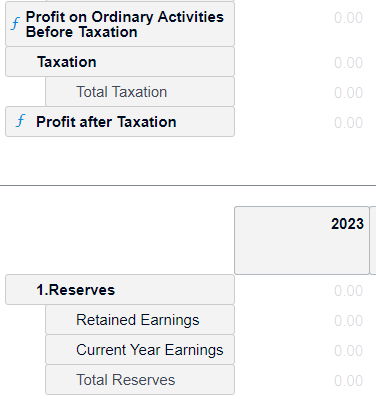
The most relevant section is that on “SOFA and related reporting”. Having created a table with columns of revenue and expense for each project, you can then add a “Schedule” at the bottom into which you insert Retained Earnings and Current Year Earnings accounts like that in the image below. If you have any problems bringing this schedule into the main report, ignore that part of the advice and do what you need within the separate schedule.
At first you may get some odd values for the Retained Earnings per project. I don’t understand how that happens. But now make a journal entry that corrects the shown value to the true value and you should be good from then on. The date for the entry should be, for example, on 31 March 2022 if you want Xero to show correct values from 1 April 2022 onwards.
Suppose the first value shown for Project X Retained Earnings is £5000 and it should be £7500. The journal entry should then Debit the Retained Earnings account (960) by £2500 with no tracking applied and credit the same account by £2500 with the project tracking code value = Project X.
Below is an image of a report edit with the Schedule mentioned added.
 Xero for Small Charities